
PromptFy Web
How to remove background music from a video online
Reduce background music in a video with PromptFy Web. Distinguish a separate music track from mixed audio, compare the processed voice, and review the result.
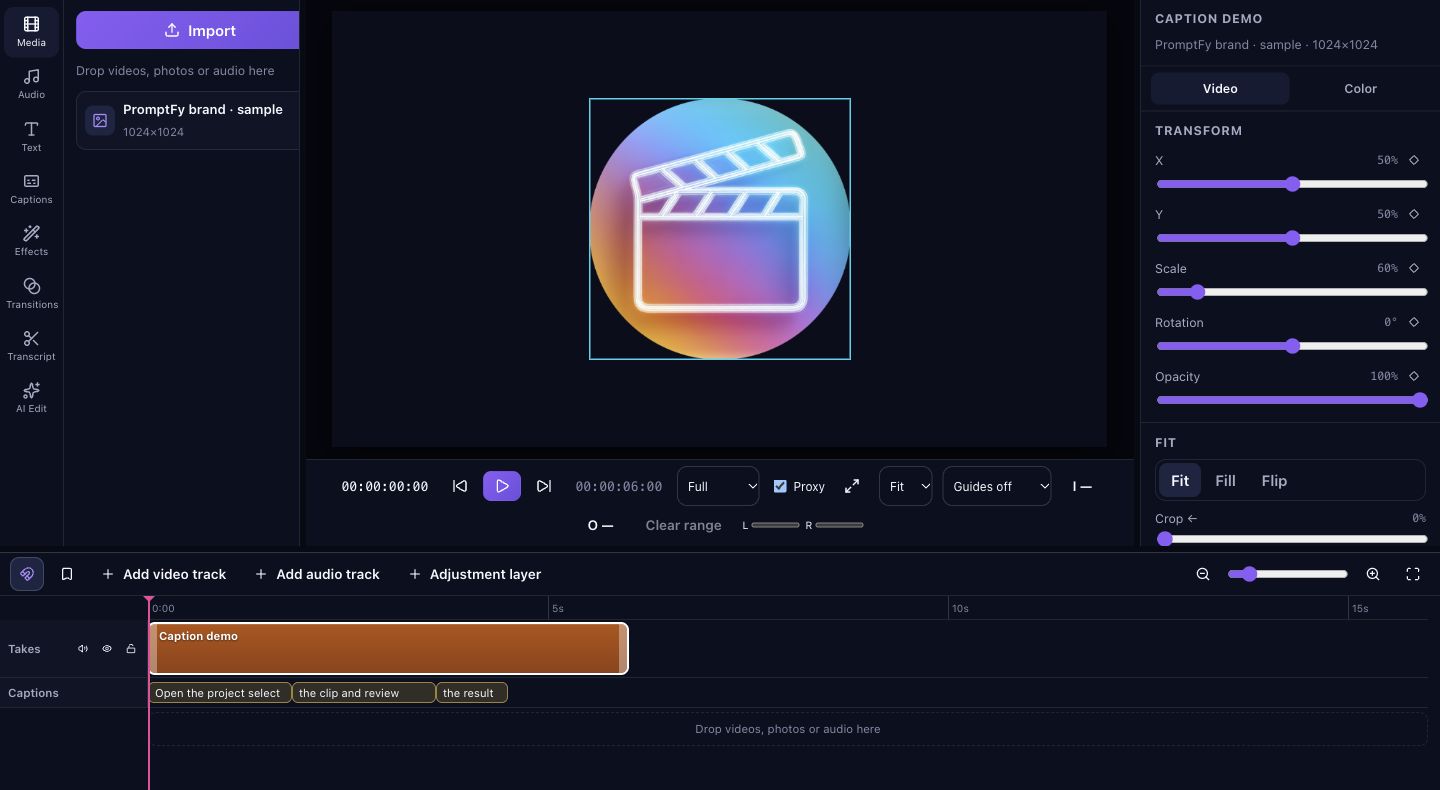
Check which problem you actually have
If you imported music separately, select that music clip and lower or mute it. You do not need sound separation for a track you already control. If lowering the video’s volume also lowers the person speaking, the music and speech may be inside the same recording. Keep that original and test a short representative passage before processing the whole project.
Prepare the source for a fair comparison
Choose a passage with a quiet spoken sentence, a louder sentence, and a pause where the music is audible. Write down a few words that are difficult to hear. This gives you something specific to check afterward. In the web mixer, preparation is limited to a source range of up to five minutes; source duration and clip speed affect that range. Use a shorter eligible clip if the app reports the range is too long.
Identify sounds and prepare the music control
Select the source and open Identify sounds. Wait for analysis and the supported separated groups. This browser processing needs its model available; the first use may download it. A detected sound name does not guarantee its own editable channel.
When a Music group is available, lower it or use Remove music. Render the changed preview with Listen to changes, then compare Original and Modified at the same passage. If no music group is available, do not assume the button can separate music anyway.
Use this listening checklist
For the quiet sentence, can you still hear the first consonant and the end of each word? During the loud sentence, does the voice sound hollow or unstable? During the pause, is the remaining music acceptable? These are listening checks, not a guarantee of complete removal.
Try a smaller reduction if full removal harms speech. Each level change requires a new preview. A little remaining music may be preferable to an instruction that loses an important word. Keep the original if the processed version does not help.
Apply only a useful result
Apply adds a processed audio clip aligned with the selected source and mutes that source clip’s original audio. Review the transition into and out of the edited passage, as well as other project music that may still be playing. Use undo if the result is worse. Export a short test and listen outside the browser editor before finishing the full video; the source picture cannot reveal damaged speech.
Frequently asked questions
Can I remove music and keep every word perfectly?
Separation estimates overlapping sounds. Results depend on the source, so compare the voice and keep the original when words become less clear.
Do I need separation for an imported music track?
No. Lower or mute that separate timeline clip directly, then check the mix with the spoken recording.
Does changing a slider finish the edit?
No. Listen to a newly rendered preview and apply a useful result deliberately. Check the resulting added clip on the timeline.

Try your next workflow in PromptFy Web
Open the browser app to check the tools and access available to your account.
Choose your microphone and improve recording audioOpen PromptFy Web