
PromptFy Web
Control your computer teleprompter from a phone
Control a computer teleprompter from your phone in PromptFy Web. Pair with a QR code, test pause and scrolling, and troubleshoot an expired session.
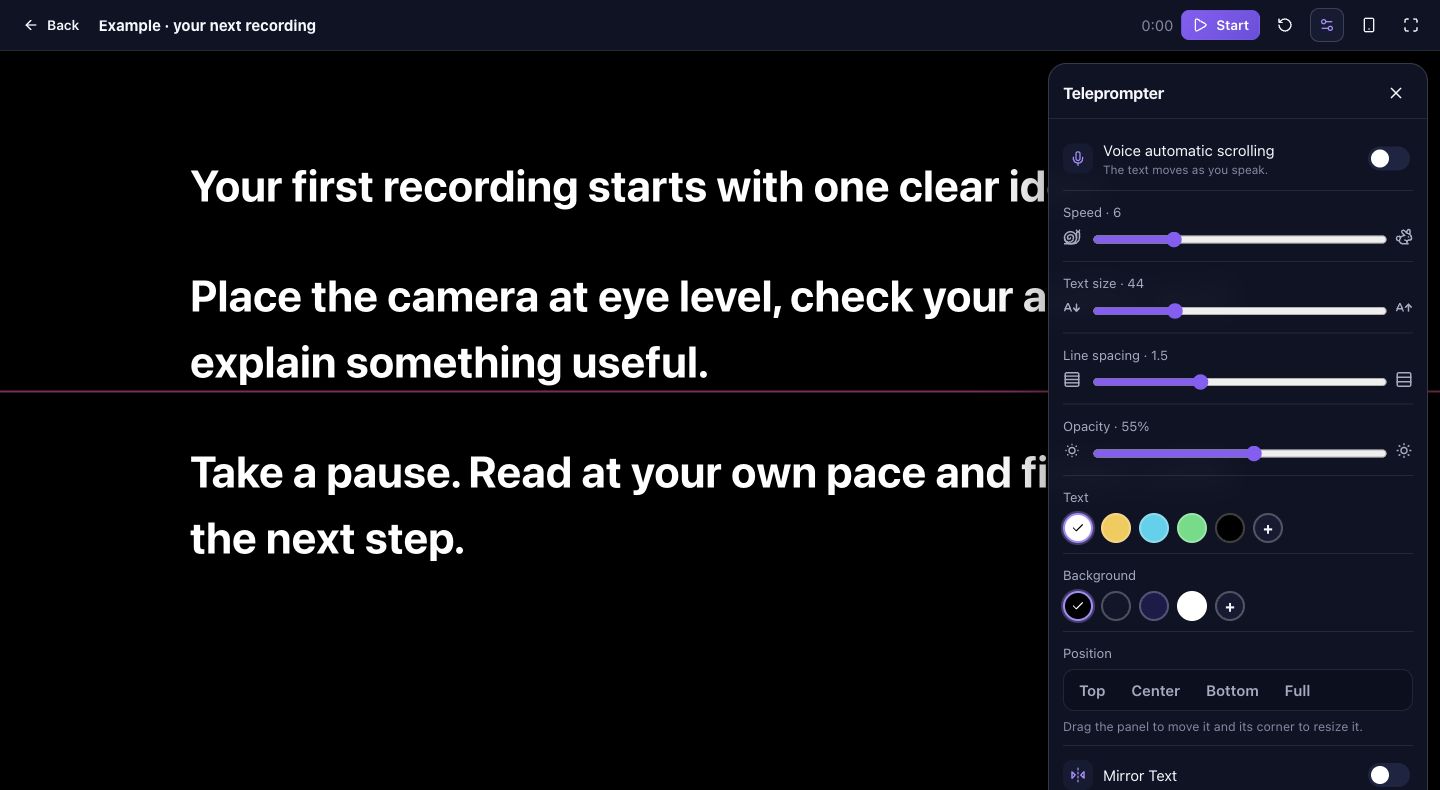
Choose the screen that reads the script
Open a saved script in the computer teleprompter. Adjust the reading panel and rehearse a paragraph before pairing the phone. Remote control changes how you operate that screen; it does not transfer the script into a separate recording device.
The teleprompter and recording screens can support different commands. Starting a script is not the same as starting camera capture. Check the computer screen and its recording indicator whenever you intend to record.
Pair the phone with the QR code
Open the remote panel on the computer and wait for its QR code and pairing code. Scan the QR with the phone and open the link. The browser remote does not require an app installation or a separate phone login for this pairing flow.
- Keep the computer session open while connecting the phone.
- Wait for the phone to show a connected state.
- Try pause, resume, and restart while watching the computer respond.
Set a comfortable pace from your position
Move to the place where you will speak. Use the phone to adjust scrolling speed and text size, then read the longest sentence aloud. If fixed-speed scrolling is too fast, lower it instead of shortening every pause in your delivery.
Illustrative rehearsal: read an opening paragraph, pause to explain an example, resume, and restart for a second take. Confirm each command visually on the computer before relying on it in a real recording. Network delay can affect responsiveness.
Resolve connection problems in order
If the remote stays on connecting, check connectivity on both devices and confirm that the original session is still open. If it reports an expired session, open a new remote session on the computer and scan the new QR code.
A pairing link grants access to commands for that session. Keep it with the person operating the recording. Do not publish the QR code in a tutorial screenshot or reuse an old code as a permanent remote link.
Keep a fallback for the take
Before an important session, test the computer controls too. In the standalone teleprompter, Space toggles playback and the up and down arrows adjust speed when you are not typing into an input. Keep the mouse or keyboard within reach during your first rehearsal.
This web workflow relies on the available remote service. Phone browser control is distinct from native iPhone or Apple Watch integrations; check those separately rather than assuming the same setup instructions.
Frequently asked questions
Does the phone need the PromptFy app?
For the QR pairing flow described here, the phone opens a browser remote without a separate app installation or login.
Why does the phone say the session expired?
The pairing session is no longer available. Open a new remote session on the computer and scan its new QR code.
Does pressing Play start a video recording?
Play controls script playback. Recording is a separate action supported by the recording screen; always check its recording indicator on the computer.

Try your next workflow in PromptFy Web
Open the browser app to check the tools and access available to your account.
A teleprompter that follows your voiceOpen PromptFy Web