
PromptFy Web
Record with a webcam and online teleprompter
Record webcam videos with an online teleprompter in PromptFy Web. Set up your script, camera, microphone, and reading panel before your first take.
Prepare a script for speaking, not reading silently
Start with one idea and a clear closing action. Break the script into short paragraphs so you can find your place after a pause. Read it aloud once before opening the camera: a sentence that works on paper may still feel awkward when spoken.
Save the script in the script library and open the recording flow. Presentation notes can mark a pause or an eye-contact reminder without becoming spoken words. Review their paragraph attachments after changing the script.
Check the webcam and microphone
Allow the browser to access the devices you intend to use. Confirm the selected microphone rather than assuming the laptop chose your external one. Use headphones when checking playback so you can hear room noise and clipping.
- Place the webcam near eye level and face a soft light source.
- Record a short passage with a quiet pause and a normal speaking sentence.
- Play it back and check both the picture and the actual captured sound.
Position the teleprompter panel
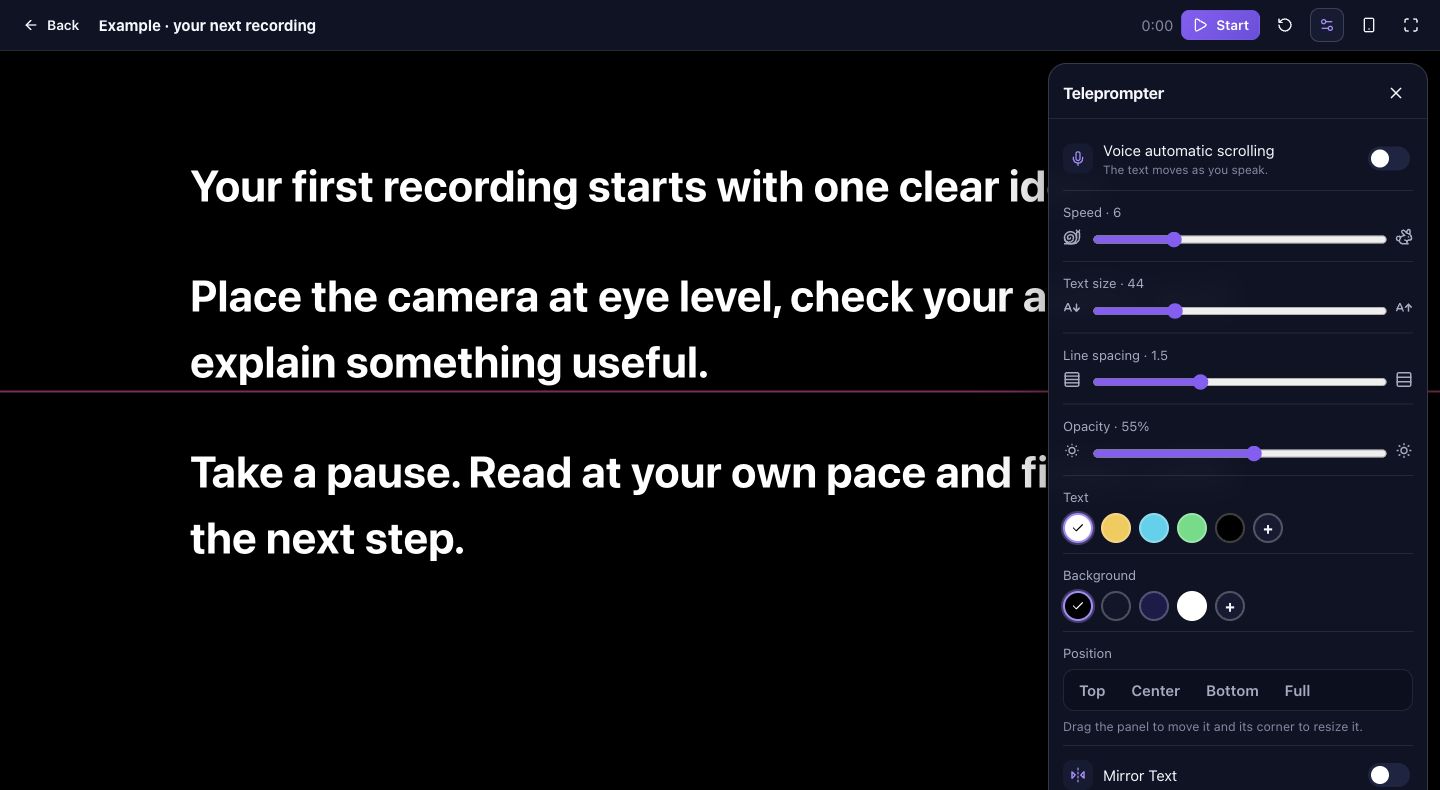
Move and resize the reading panel using its handles while playback is stopped. Keep the lines near the camera and adjust text size, spacing, and background opacity until the words are easy to see without hiding your expression.
Begin with fixed-speed scrolling. Rehearse the longest sentence and reduce speed if you rush to keep up. Voice following depends on browser speech support and microphone access; test it separately instead of assuming identical behavior on every device.
Try this short recording exercise
Illustrative script: “Your first recording does not need a perfect studio. Put the camera at eye level, check your sound, and explain one useful idea. Then watch the result before recording the next take.”
Record it once with a wide panel and once with narrower lines near the lens. Compare eye movement and delivery, then keep the arrangement that feels easier to follow. The exercise is a practical comparison, not a promise of perfect eye contact.
Review before moving to the editor
Check the beginning, the last sentence, and one pause. If the audio is missing, fix device selection or permissions before doing more takes. If scrolling distracts you, shorten the text and rehearse again.
Feature access, browser capabilities, and account requirements can affect your workflow. Open the web app to check the options available to you; the iPhone app remains a separate recording option.
Frequently asked questions
Do I need to install a desktop app?
The web recording flow runs in the browser. Camera and microphone permissions are still required, and browser support can affect recording.
Does voice scrolling work in every browser?
No. Speech recognition support and microphone access vary. Test voice following on your device, or rehearse with fixed-speed scrolling.
Will presentation notes appear in the video?
Presentation notes guide your delivery and are separate from exported video text. Use the editor’s text or caption tools for words the audience should see.

Try your next workflow in PromptFy Web
Open the browser app to check the tools and access available to your account.
Record video while reading your scriptOpen PromptFy Web