
PromptFy Web
Create a product demo video in your browser
Create a product demo video with a shot list and sample script. Assemble webcam takes and product footage in PromptFy Web, then check the final export.
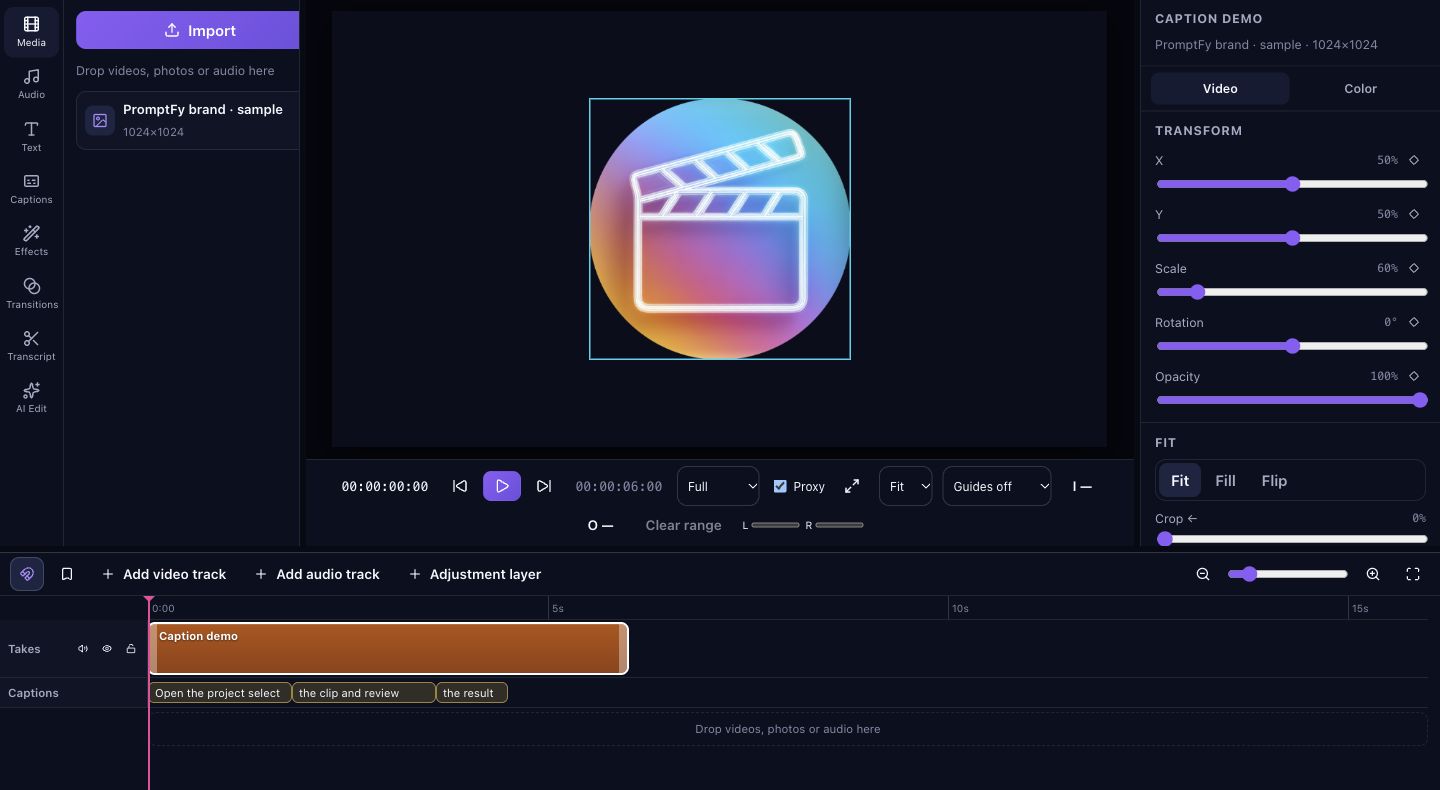
Choose a question the picture can answer
For this example, demonstrate whether a desk organizer can keep a charging cable within reach. The useful evidence is the cable staying accessible while the drawer opens and closes. “It improves your whole working life” is harder to demonstrate. Write down the exact action before filming so you do not finish with an attractive shot that never answers the buyer’s question.
Use this three-shot production plan
Shot one: a wide view shows the cable slipping behind the desk. Shot two: a close-up shows your hand placing it in the organizer. Shot three: the same wide view shows the drawer opening while the cable remains reachable. Keep the desk and cable position consistent so the comparison is understandable.
Sample spoken script: “My cable keeps falling behind the desk. I am placing it in this slot, with enough slack to open the drawer. Here is the drawer opening again. The connector stays within reach. Check your cable thickness and desk layout before choosing an organizer.”
Record the explanation and gather the footage
Save your spoken introduction in PromptFy Web, rehearse it, and record with the webcam if the product is visible from that angle. Import close-ups recorded separately into a web project. For a software demo, import a screen capture made with an appropriate recording tool. Check that small labels remain readable in the project’s delivery format before assembling the entire video.
Match each sentence to visible evidence
Put the three shots in order on the timeline. Trim setup movements while keeping enough of each action to understand what happened. Place the explanation where the corresponding action appears; add a recorded voiceover if the useful close-up has no explanation. Avoid a cut that hides the moment the cable slips or stays in place. Review the sequence without music first.
Review the next step and export
End with one useful action: inspect dimensions, compare the available sizes, or open the relevant product information. Choose the one your video actually supports. Watch a downloaded test with sound, then silently to check visual clarity. Correct captions for product names and measurements. Keep the editable project package so you can change a shot or instruction when the product changes.
Frequently asked questions
Do I need to appear on camera?
No. You can assemble product footage with a recorded explanation. Use a webcam introduction only when it helps the demonstration.
Can I use an existing screen recording?
Import the recording as media and test its compatibility. Capture the screen with an appropriate tool before this editing workflow.
How long should the demo be?
Give the viewer enough time to see the action and understand its result. Remove repetition before trying to meet an arbitrary length.

Try your next workflow in PromptFy Web
Open the browser app to check the tools and access available to your account.
Organize, trim, edit, and export recorded videosOpen PromptFy Web