
PromptFy Web
Edit video on a timeline in your browser
Edit video in your browser with PromptFy Web. Import clips, trim and split a timeline, check audio, and test an MP4 export before a longer project.
Start with the delivery format
Choose the frame shape before arranging titles or captions: vertical for a portrait delivery, landscape for a wide presentation, or another available project format. A format change affects framing, so check faces and important objects instead of stretching the source.
Create a project from the Projects area and import the clips you need. Give it a name you can recognize later. Keep original files outside the browser as well; a working edit is not a replacement for your source archive.
Build a simple sequence first
Place the opening, explanation, and closing in order. Play the joins before adding effects. A clear sequence makes it easier to notice repeated sentences, abrupt gestures, and sound changes that a transition alone will not solve.
- Trim the beginning and end of a clip to remove setup time.
- Split at a deliberate point when you need to remove material inside a take.
- Use undo when a change removes something you still need, then replay the join.
Use the preview and inspector together
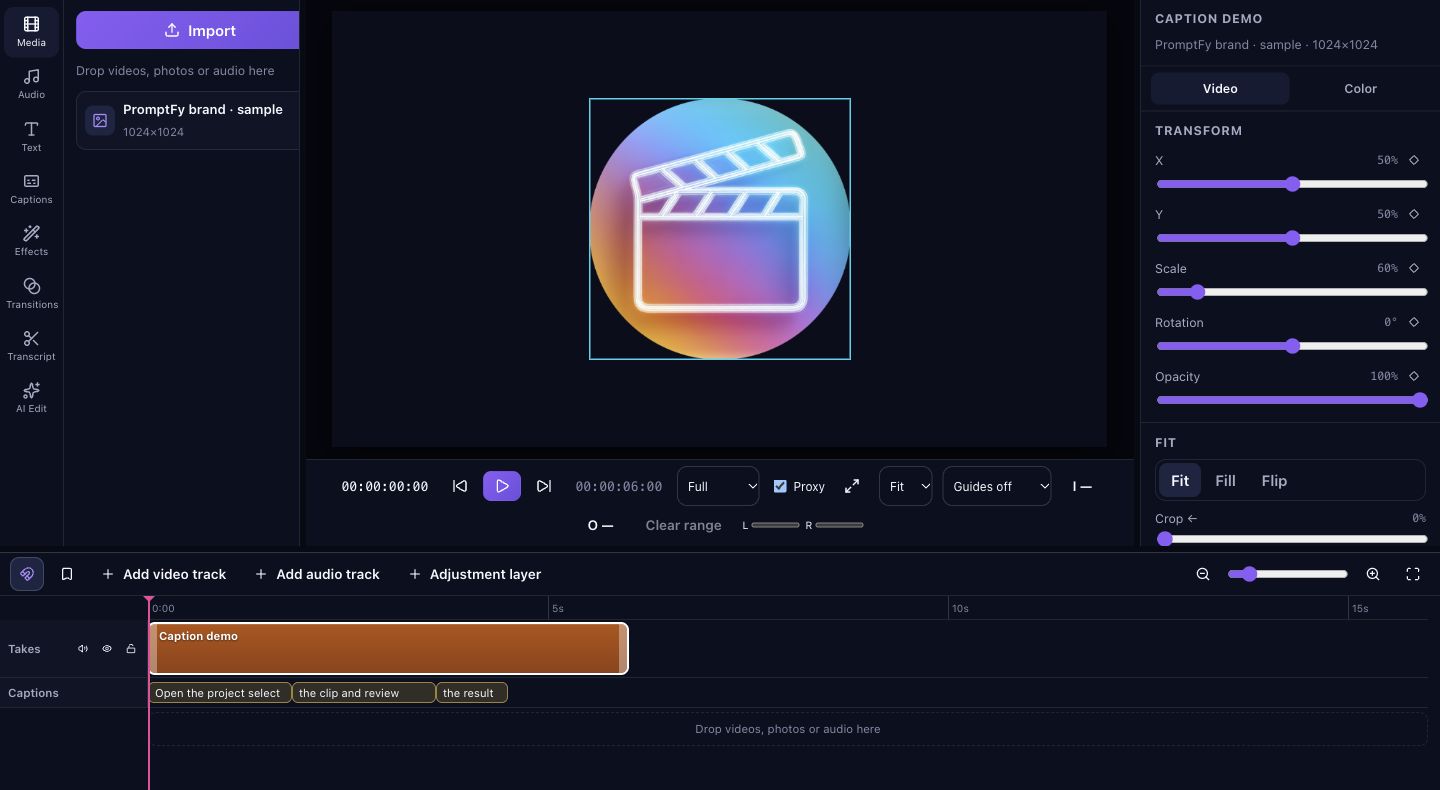
Select a clip before adjusting its picture, audio, speed, or color. The timeline tells you where the clip sits; the preview shows how the audience will see it. Review the result in motion because a good still frame can hide a rough cut.
Illustrative exercise: assemble three takes of a product explanation. Keep the useful sentence from the first, the demonstration from the second, and the closing from the third. Listen across both joins before adding a title or captions.
Run a small export before a long session
Open Export and check the project format, resolution, and frame rate offered to your account. Export a short representative passage containing a cut, speech, and any overlay you intend to use. Download it and watch it outside the editor.
Export depends on browser encoding support, source media, and device resources. Higher output resolution cannot restore missing source detail. If the test fails, keep the project and source files, check browser support, and try a smaller test before scaling up.
Save an editable copy as well as the finished video
An MP4 is the finished result for sharing. A portable PromptFy project package is intended for reopening an edit with its media. Save both when you need a delivery file and an editable archive.
Some web editor features depend on your plan. Check the app and pricing before planning work around an option. Do not assume that the same account alone makes every source video available on another computer.
Frequently asked questions
Can I edit without installing a desktop editor?
The web timeline runs in the browser. Media compatibility, encoding support, storage, and available device resources still matter.
Is exporting an MP4 the same as saving the project?
No. MP4 saves the rendered video. Keep a portable project package too if you want an editable copy containing the project and its media.
Will a higher export resolution improve a blurry clip?
It can increase output dimensions but cannot recreate detail absent from the source. Check focus and source quality before choosing export settings.

Try your next workflow in PromptFy Web
Open the browser app to check the tools and access available to your account.
Organize, trim, edit, and export recorded videosOpen PromptFy Web